![[logo image]](/icon.png)
ATA Database
Resources for vintage devices.

Installing and Configuring Asterisk for Osmocom GSM
This guide will walk you through building Asterisk from source, and configuring it for use with the Osmocom GSM stack.
Prerequisites:
A computer running Linux (Debian, Ubuntu, etc.)
Osmocom GSM stack with osmo-sip-connector installed
Install Dependencies:
1. Update your repositories:
Open your Terminal
sudo apt update && sudo apt upgrade -y
2. Install Dependencies:
sudo apt install -y wget build-essential git curl subversion pkg-config libjansson-dev libxml2-dev libncurses5-dev libsqlite3-dev libssl-dev uuid-dev libedit-dev libcurl4-openssl-dev libspeex-dev libspeexdsp-dev libogg-dev libvorbis-dev libopus-dev libsrtp2-dev libnewt-dev libical-dev
Installing Asterisk:
3. Get Asterisk Source:
Using Asterisk 23 for example:
Navigate to /usr/src, get a copy of Asterisk source, and extract it into a folder.
cd /usr/src sudo wget https://downloads.asterisk.org/pub/telephony/asterisk/asterisk-23-current.tar.gz sudo tar xzf asterisk-23-current.tar.gz cd asterisk-23.*/
4. Install Additional Dependencies:
Use the included helper script to find and install all missing dependencies.
sudo contrib/scripts/install_prereq test
If the output has a list of missing dependencies, run:
sudo contrib/scripts/install_prereq install
Now generate the configuration:
sudo ./configure
5. Select Modules:
Run:
sudo make menuselect
You should see a GUI that looks like this:
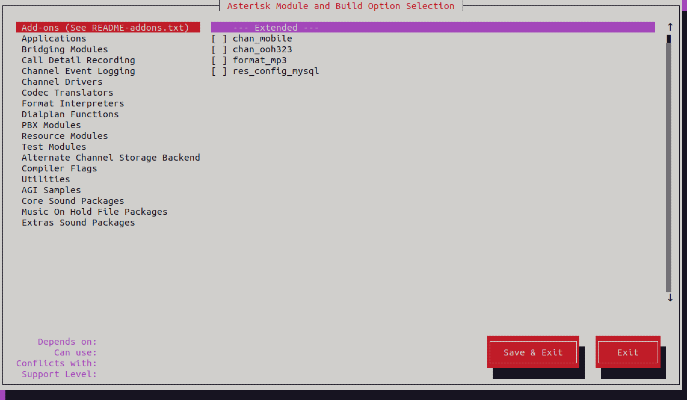
The default config should be correct, but double check that the following features are enabled:
- Channel Drivers / chan_pjsip
- Resource Modules / res_pjsip
- Codec Translators / codec_gsm
- Format Interpreters / format_gsm
- Format Interpreters / format_wav
If anything related to PJSIP, GSM, or WAV is disabled, enable it by pressing enter.
You may also enable additional modules and options to fit your usecase.
Be sure to Save & Exit when finished.
6. Compile and Install:
Run:
sudo make -j"$(nproc)"
If build is successful, run:
sudo make install sudo make samples sudo make config sudo ldconfig
7. Add Asterisk User:
We are going to run Asterisk as its own user without root privileges:
sudo groupadd --system asterisk sudo useradd --system --no-create-home --ingroup asterisk asterisk sudo chown -R asterisk:asterisk \ /var/lib/asterisk \ /var/log/asterisk \ /var/run/asterisk \ /etc/asterisk
Now edit /etc/default/asterisk using nano:
sudo nano /etc/default/asterisk
And add the following lines to the bottom of this configuration:
AST_USER="asterisk" AST_GROUP="asterisk"
8. Enable and Start:
Run the following lines:
sudo systemctl enable asterisk sudo systemctl start asterisk
Then check its status to ensure that it is running using:
sudo systemctl status asterisk
You should see Loaded: loaded as well as Active: active (running)
There may be an error about a missing config. This can safely be ignored as long as Asterisk is running, since this is caused by a module we are not using in this setup. You can always disable the module if the error bothers you, by adding a noload line to your modules.conf
9. Confirm:
Now, try to access Asterisk CLI to make sure it is working:
sudo asterisk -rvvvvv
You should see Connected to Asterisk x.x.x or similar, and be inside the CLI!
To exit the CLI, just type exit
You now have Asterisk installed, but you must configure it to connect to your Osmocom stack.
Configurations:
10. Edit your pjsip.conf:
Navigate to /etc/asterisk as root and open pjsip.conf in a text editor. You may also edit in the terminal using sudo nano /etc/asterisk/pjsip.conf
Remove all existing text in this config. It is all placeholder, and is not applicable to this setup.
Use the following structure for your configuration:
[transport-udp] type = transport protocol = udp bind = 127.0.0.1 [GSM] type = aor contact = sip:127.0.0.1:5069 [GSM] type = identify endpoint = GSM match = 127.0.0.1 [GSM] type = endpoint context = gsmsubscriber dtmf_mode = rfc4733 disallow = all allow = gsm direct_media = yes aors = GSM [0001] type = aor max_contacts = 1 [0001] type = endpoint context = gsmsubscriber allow = gsm direct_media = no callerid = 0001 aors = 0001 [0002] type = aor max_contacts = 1 [0002] type = endpoint context = gsmsubscriber allow = gsm direct_media = no callerid = 0002 aors = 0002
Let's break this down.
The configuration above defines two endpoints (GSM phones) with numbers 0001 and 0002, which are part of a context called 'gsmsubscriber'. These numbers should directly correspond with your Osmocom GSM subscribers defined in OsmoHLR. Just substitute 0001 and 0002 for your MSISDNs.
There is also an endpoint called GSM, which is our bridge to osmo-sip-connector, allowing calls to connect between Osmocom and Asterisk.
Each endpoint contains a set of rules, such as allowing GSM codec (allow = gsm), disabling RTP (direct_media = no), and setting the context to gsmsubscriber. These rules tell Asterisk how to handle and route the traffic between the endpoints.
One important configuration is in the section:
[GSM] type = aor contact = sip:127.0.0.1:5069
The 127.0.0.1:5069 indicates the IP address and port. These must be consistent with your configuration in osmo-sip-connector.cfg!
Your osmo-sip-connector.cfg located in /etc/osmocom must also include:
app mncc socket-path /tmp/msc_mncc sip local 127.0.0.1 5069 remote 127.0.0.1 5060
The local port must also be 5069, matching your Asterisk pjsip.conf!
With this structure, you should be ready to configure your dialplan.
11. Edit your extensions.conf:
Navigate to /etc/asterisk as root and open extensions.conf in a text editor, or use Nano: sudo nano /etc/asterisk/extensions.conf
Clear all existing text from this configuration file.
This is where we tell Asterisk what to do when somebody dials a number (also known as a dialplan). Similar to pjsip.conf, use this structure in your extensions.conf:
[public] include => gsmsubscriber [gsmsubscriber] exten => _XXXX,1,Progress() same => n,Ringing() same => n,Dial(PJSIP/${EXTEN}@GSM,30) same => n,Hangup()
This is a simple configuration that instructs Asterisk to connect you to a GSM endpoint if you dial a 4-digit number.
The number of X's in the extension represents the length. For example, if you use a different number length, such as 10-digit numbers, simply use _XXXXXXXXXX,1,Progress() instead.
12. Save and Restart:
After saving your configuration changes, be sure to restart Asterisk:
sudo systemctl restart asterisk
Osmocom Configurations:
13. Configure OsmoMSC:
After configuring asterisk, now you must enable external call routing in OsmoMSC.
Navigate to /etc/osmocom as root, and edit osmo-msc.cfg
You should see this line:
msc mncc internal
Add an exclamation mark before this line, so it becomes !mncc internal. This comments the line, telling Osmocom to ignore it.
Then add the following line below your commented entry:
mncc external /tmp/msc_mncc
This line may exist already. If it does, just remove the exclamation mark to enable it.
14. Configure Osmo-sip-connector
We already looked at this configuration previously, but there is one more thing to check.
In osmo-sip-connector.cfg, check for the line:
mncc socket-path /tmp/msc_mncc
Double check that this matches the path you just defined in OsmoMSC. If it does, save and exit.
Test Your Configuration:
15. Start a call
Start your Osmocom GSM stack, being sure to restart necessary components after changing their configurations, if they were previously running.
Now, call one of your phone that you defined in your Asterisk pjsip.conf. It should ring, and you should hear audio between them!
Common Errors:
Mismatched Ports
One common mistake is using different ports between Osmo-sip-connector and PJSIP. Double, or even triple check that the line contact = sip:127.0.0.1:5069 in pjsip.conf has the same IP and port as the line local 127.0.0.1 5069 in your osmo-sip-connector.cfg.
PJSIP vs chan_sip
If you built asterisk from source, you should not have this issue. However, if you are using Ubuntu and simple ran sudo apt install asterisk, you may have accidentally installed an ancient version of Asterisk which behaves differently. You would need to either build a newer version from source (recommended), or utilize sip.conf and its associated configuration syntax, rather than pjsip.conf.
Resources:
Osmocom.org - osmo-sip-connector Howto (asterisk example with older chan_sip)
More:
Credit and Attribution:
Special thanks to the folks at Osmocom for making these networks possible. More information at Osmocom.org
Thanks to Asterisk for remaining a great open source solution for SIP/VoIP projects. More information at Asterisk.org
Thanks to MC4f, Kataack, Laptopfm, Chris Moos, Petar Marinov and the rest of the DIY cellular community for making projects like these accessible to the masses!
Last updated: 9/20/2026