Categories:
Unlocks:
coming soon
![[logo image]](/icon.png)
coming soon
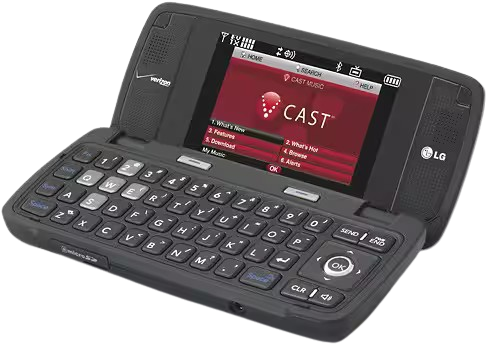
This guide will walk you through changing your LG device's browser configuration by using a filesystem editor (BitPim) and hidden menus. I am using an LG EnV Touch as my example phone.
An LG EnV or Voyager series phone, such as the EnV, EnV2, EnV3, EnV Touch, LG Voyager, or a similar era LG CDMA phone.
A computer running Windows 10 or older. Windows 11 may work, but some have had unsuccessful attempts.
Hex editor software, such as HxD
1. Install the LG Driver:
On your computer, download and install the LG United Mobile device driver linked below. This is required for interfacing with your LG device.
Simply extract the zip archive and run the driver installer.
2. Install BitPim:
Linked below is a file system editor called BitPim. This is what will allow you to edit the file system of your LG phone, allowing you to remove the restrictions keeping you from changing the browser configurations.
To install BitPim, simply download and extract the zip archive linked below, and run the installation utility. Once the installation completes, run BitPim to verify functionality.
Note: BitPim will often fail to start due to a missing DLL file. If you encounter this issue, simply download msvcp71.dll (linked below) and move it into your BitPim installation directory, which is often C:\Program Files (x86)\BitPim. Relaunch BitPim after adding the DLL, and it should start normally.
3. Connect your phone:
After installing BitPim, connect your LG device to your computer via USB. BitPim should automatically detect your device, and a green icon should appear, along with your device model.

If your device was not automatically detected: Click the settings (wrench) icon, and select your device type from the dropdown menu, then save your settings.
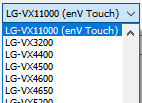
4. Viewing the Filesystem:
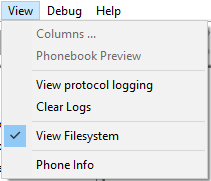
In the navigation bar, click "View" and check the "View Filesystem" box.
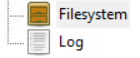
A new Filesystem tab should appear in the sidebar. Click on it, then select the + icon next to the blue folder that appears in the main screen.
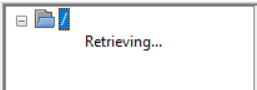
After clicking the folder, it should say "retrieving" for a few minutes as your files are being loaded.
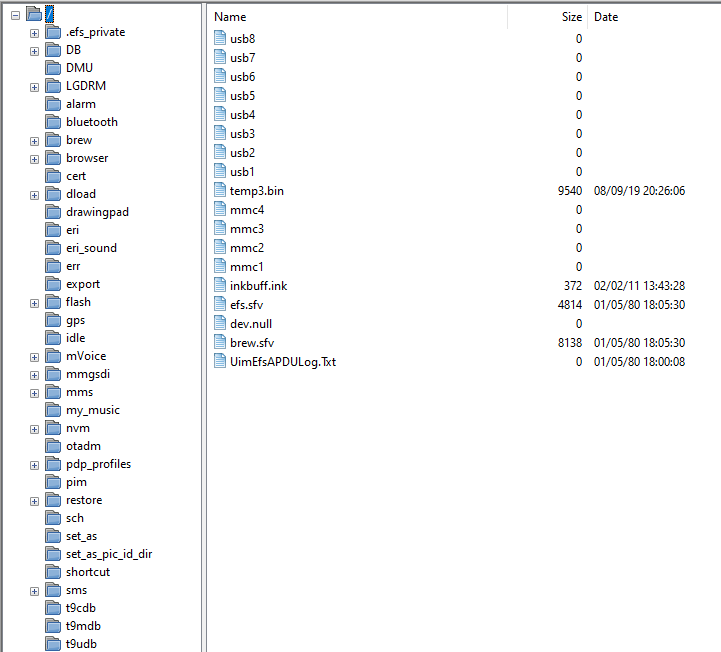
After a few minutes, your filesystem contents will appear in the main section. Your screen should look like this:
5. Editing the Filesystem:
In the filesystem, navigate to Browser and expand it. Now expand Setting and observe the contents. You should see 3 database files.
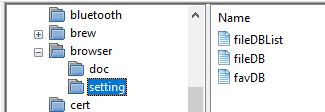
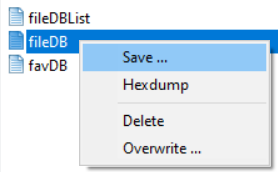
Right click fileDB and save it to your computer to be edited.
With fileDB saved to your computer, open your favorite hex editor, such as HxD. In your hex editor, open your saved fileDB. You may want to make a copy of this file before editing, in case you make a mistake.
Now that you have opened fileDB, you should see raw hexidecimal data, similar to the image below:
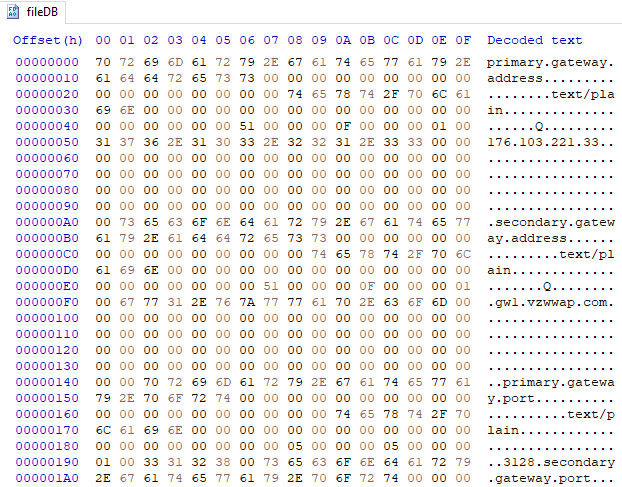
At the very bottom of fileDB, you should see 00 00 30 00 or similar.
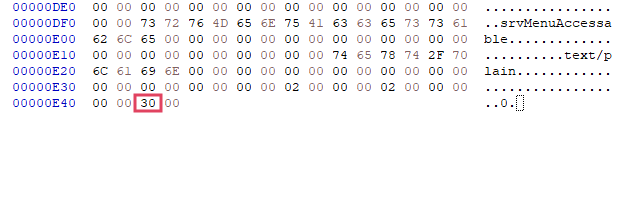
Replace this string with 00 00 31 00 in order to allow settings to be edited.
Ensure you only replace the final "30" and not the surrounding 0s! The exact file size must remain constant.

Double check your changes and ensure that you have only changed 30 to 31. Be sure to save your changes as well (Crtl+S).
After editing your fileDB, open BitPim once again and overwrite the existing fileDB with your new, edited fileDB. To do this, right click the old fileDB in BitPim, and select "overwrite"
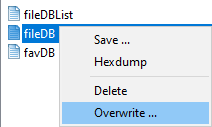
A file explorer window will appear. Simply select your edited fileDB from the location you saved it in, and press the "open" button.
Note: Your updated file will be automatically saved to your phone without confirmation. To verify your changes, you can right click fileDB inside BitPim and select "Hexdump."
6. Restart your Phone:
The new file may be saved, but changes will not be registered by your LG device until you restart it. Fully power off your phone and remove its battery for approximately 10 seconds. Then, insert the battery again and power on your device.
You may now update your browser configuration without write restrictions.
7. Accessing the Programming Menu:
To actually change your browser configuration, you must access the programming menu.
In the dialer, or while the phone is opened, type ##PROGRAM + your phone's model number.
Examples:
LG EnV3 VX9200 - ##PROGRAM9200
LG Versa VX9600 - ##PROGRAM9600
LG Voyager VX10000 - ##PROGRAM10000
LG EnV Touch VX11000 - ##PROGRAM11000
You will be prompted for a service code (your MSL). For Verizon devices, this code is 000000 by default.
8. Browser Settings:
From the Services screen, navigate down to WAP Setting. From here, you can edit your browser settings to be usable without the old legacy carrier proxies/pages.
Configuration Example:
1. Proxy: 172.103.221.33
2. Proxy Port: 3128
6. Homepage: [Any valid webpage]
This is a known good configuration that will allow internet connectivity as of May 2026. Proxy hosted by Petar Marinov at 15pmm01.com
Congratulations! You can now browse the web on your LG phone.
Downloads:
More: